 |
DI-Guy SDK Documentation
13.5
|
|
DI-Guy SDK Documentation
13.5
|
DI-Guy provides tools, techniques, and functions for improving runtime performance.
You can use these tools to create simulations that look great and run quickly. In this section performance refers to the efficient update and drawing of DI-Guy characters so as to maximize graphics frame rate (draw) and update rate, and minimize CPU load.
The following basic techniques help scale performance of DI-Guy characters:
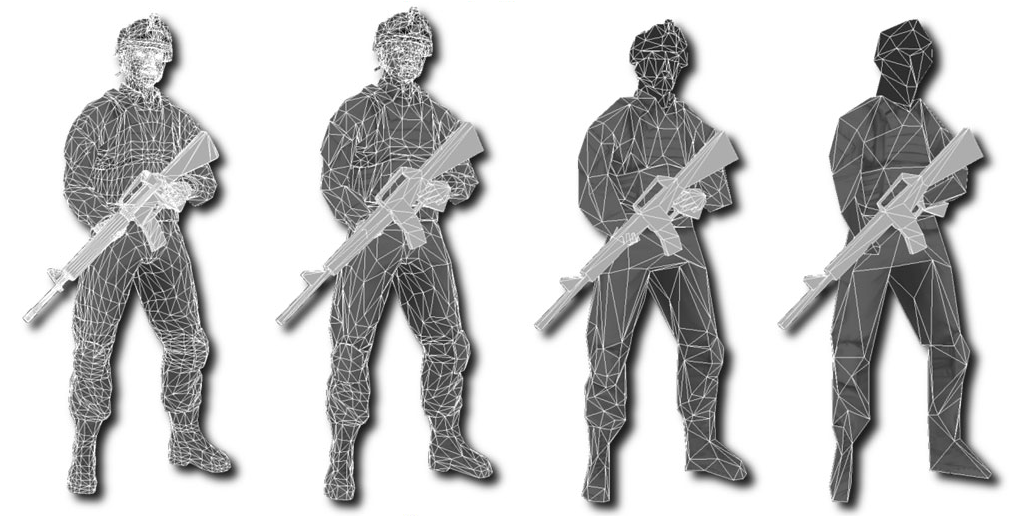
You can set the graphics LOD of a character using the diguyCharacter function call set_graphics_lod(). However, typically LODs are controlled automatically. You can query and set the distances that define LOD ranges on a per-character basis using the diguyCharacter::set_lod_ranges(…) and get_lod_ranges(…) function calls.
The DI-Guy Character Viewer is an excellent way to review a model’s LODs, both visually and numerically.
Advanced Performance Techniques. Advanced performance techniques can increase your DI-Guy performance. The use of skinned versus segmented characters often affects the relevance of these techniques. A benchmark program is included to help measure the effect of these advanced performance options. Advanced techniques include:
When there are many characters in a scene, the DI-Guy Load Manager (class diguyLoadManager) uses update culling and motion LODs to improve runtime performance. Characters far from the camera are made to articulate less often than characters close to the camera. Through this process the Load Manager reduces the total amount of CPU processing used to update DI-Guy characters, with little to no degradation of the visuals.
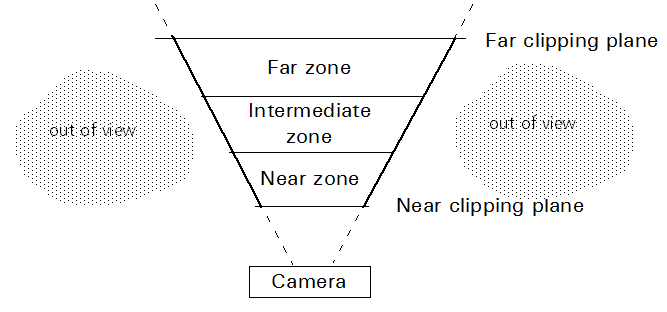
The Load Manager divides the world into four zones: near zone, intermediate zone, far zone, and out-of-view (figure). Characters in the near zone articulate fully at full rate. Characters in the medium and far zones articulate at a reduced rate and use motion LODs to limit the joints articulated. Characters in the out-of-bounds zone are not articulated at all, and have their location calculated at a reduced rate. (The Load Manager does not support multiple viewports.)
By default, the Load Manager is disabled. To enable the Load Manager, create it using the diguyApp function create_load_manager(). This function returns a pointer to an instantiated diguyLoadManager class.
You must also associate a camera with the Load Manager so that it knows which characters are visible and which are not. Do this by calling the Load Manager’s member function add_view_camera(). Any time the properties of the view change, the Load Manager must be advised using the function change_view_camera_settings() or move_camera() or using the callback camera_changed().
Call the diguyLoadManager member function set_zone_bounds() to set the distances from the camera that define your zones. The default distances are 10 and 25 meters respectively.
Call the diguyLoadManager member function set_zone_parameters() to assign the percentage of time the character’s location is updated, percentage of time the joints are updated, and the motion level of detail (MLOD) for any zone. The following are the default settings expressed in terms of calls to the Load Manager functions:
Characters located outside of the view frustum will by default have their location updated at a lower rate (once per second) with no articulation when using the load manager. Use the set_max_update_period() function to specify a longer or shorter interval between position updates.
A typical DI-Guy use case is to use the DI-Guy SDK to provide the lifeform visuals for an image generator that is part of a distributed simulation receiving entity state information using DIS or HLA. You can improve performance by using the following techniques:
Draw culling, update culling, motion LODS, and load management. Draw culling, update culling, and motion LODs are powerful methods for improving performance. The DI-Guy Load Manager is an easy way to apply those methods with minimum coding. But the DI-Guy Load Manager is not the correct solution, in some cases.
If your application provides multiple views of a scene, do not use the DI-Guy Load Manager. You will have to create your own load manager to manage the DI-Guy draw culling, update culling, and motion LODs functions.
Do not use any load management if all the characters are close by and always in the view frustum.
Compression of geometry and textures has been emphasized in DI-Guy to improve load-time performance, disk footprint, memory footprint, and runtime performance.
DI-Guy ships with compressed geometry (.bdg) files. DI-Guy Data CD3 includes the uncompressed version of these models. By default, when loading a model that does not have compressed geometry, DI-Guy will try to compress and save the .bdg file for future use.
DI-Guy supports multi-texturing. To minimize texture memory, it automatically compresses .png and .rgb textures to .dds files.
Normal map textures use the DXT5_nm texture compression format. DI-Guy reference shaders only support compressed normal map textures.
DI-Guy does not load characters, motions, geometry, and textures when it reads the configuration file during initialization, it just catalogs them to know what is available. This saves time during loading, but at a performance cost during runtime. To ensure that no frames are dropped when a character is first used at runtime, there are various preloading methods available that force loading at startup.
The following functions load geometry and texture for an appearance:
diguy_*_initialize() loads appearances with "preload=true".
\note By default DI-Guy always sets characters to preload=false.
The following functions load motion data for character actions:
The following functions load motion data for a gesture:
DI-Guy keeps references to things it has loaded, and does not reread files.
[Home] [Top of Page]
 1.8.9.1
