 |
VR-Vantage 2.6 API Documentation
|


All Classes Namespaces Files Functions Variables Typedefs Enumerations Enumerator Friends Macros Groups Pages
|
VR-Vantage 2.6 API Documentation
|
This example shows how to create a plug-in that adds updaters for a GL Studio cockpit (HUD) display. It adds two new updaters: one is VR-Link protocol-specific and is used in the network thread; one is used in the render thread and is considered to use the object protocol.
As seen in exampleHatchStateUpdater.h and exampleMetersPerSecondUpdater.h, all updaters return a string that is used by the GL Studio object to update the display.
Each of the updaters also has a creator that is registered with the updater factory.
In exampleHudUpdaterPluginInit.cxx the Plugin loader needs to make sure that GL Studio plugin has been initialized and then register a post-initialize function with the display engine to add the new updaters to the updater factory.
In the post-initialize function the updater factory is populated with new updaters. The updater factory is owned by the DtSharedCockpitSettings object. Updater creators are registered with the factory. If an updater creator has the same protocol and name as an existing creator, it will replace the creator.
All updater creators have a name and a protocol that are set in their constructor. The factory uses these to do lookups when a HUD object is created.
TheDtExampleMetersPerSecondUpdater is derived from a DtGlStudioObjectAttributeUpdater since it is going to live on the object (GL Studio object) side, or in the render thread.
All updaters that are of the "object" protocol have access to a smoother object which is able to get the smoothed values for position, velocity and accelleration at the specific time called.
The DtGlStudioHatchStateUpdater is a VR-Link protocol updater that is derived from the DtGlStudioVrlAttributeUpdater. This class uses the shared source technique common in VR-Vantage. The protocol specific updaters also return a string value and have a creator exactly like the object protocol updaters. VR-Link protocol updaters are placed in a protocol-specific namespace to keep from conflicting with the same updater for other protocols.
The VR-Link protocol updater is initialized with a DtVrlinkEntityStateListener. This listener provides access to the VR-Link entity state repository and allows for signals to be sent when attributes change.
VR-Vantage includes pre-built versions of the example plug-in. To build it yourself, follow the instructions at Building VR-Vantage Examples, Applications, and Plug-ins.
This example is a plug-in. You can run it by running ./bin64/exampleHudUpdater_stealth.bat (on Windows) or ./bin64/exampleHudUpdater_stealth.sh (on Linux). For more information about running examples, please see Running Applications and Examples.
Running the example with VRForces
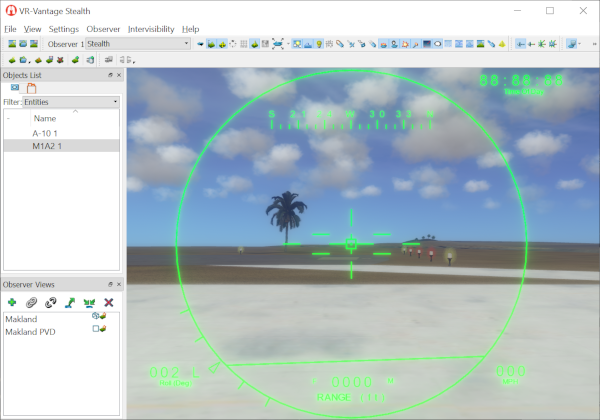
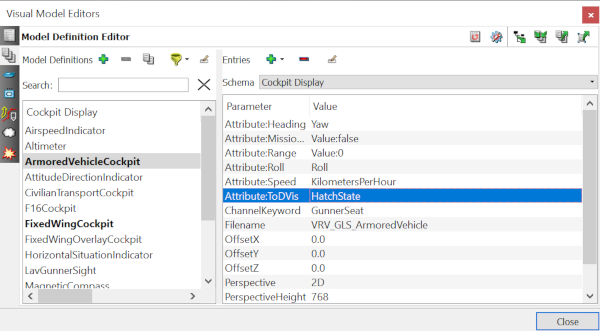
To see the effects of the plugin, start VR Forces. Load a terrain like Makland.mtf. Create an entity with a hatch (ex., M1A2Abrams MBT) and one fixed wing (ex., A-10 Thunderbolt). Run exampleHudUpdater_stealth.bat to start Vantage. Load Makland.mtf. Connect Vantage to VR Forces. You should see your tank and plane. In Vantage, go to Visual Model Editors. Select the tab for Model Definition Editor. Use the yellow funnel to filter on "Cockpit Display". Select ArmoredVehicleCockpit. Select Attribute:ToDVis. This attributed corresponds to a UI element on the tank hud as specified in the docs at <vantage dir>="">. In the hud pdf, we see that ToDVis controls the visibility of the time of day display. Change the value of AttributeToDVis to HatchState which is the name of the state given in exampleHatchStateUpdater.inl (in DtGlStudioHatchStateUpdaterCreator) Right click on the tank and choose Attach Mimic. You should see the tank hud. Now go to VR Forces. Right click on the tank. select "Set -> Appearance -> Appearance" . On the UI that comes up, select Primary Hatch and change it to Open. Click Apply. You should see a digital clock in the upper right corner which says 88:88:88 Time Of Day. Change the Primary Hatch to Closed and click Apply. The UI element in VR Vantage should go away.
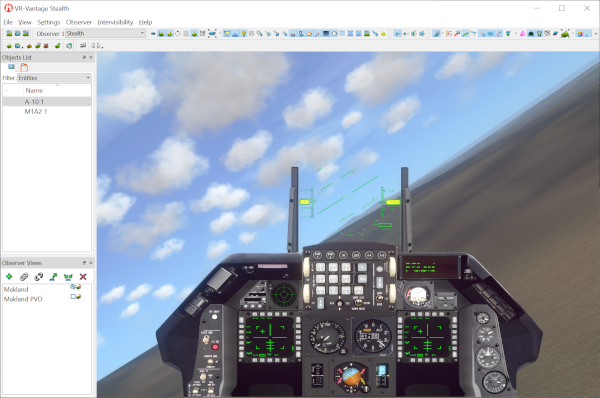
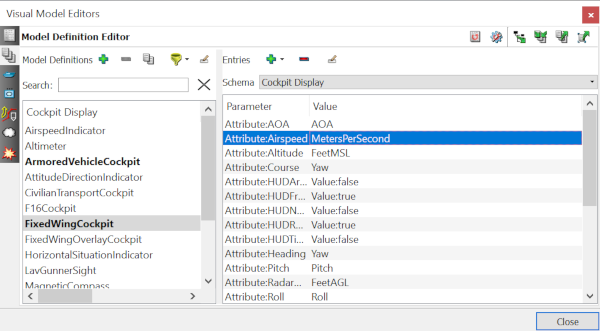
For the plane in VRF Right click on the tank and choose Attach Mimic than in VR Vantage, go to Settings -> Visual Model Editors -> Model Definition Editor and use the filter funnel to select Cockpit Display Select the FixedWingCockpit and change the Attribute:Airspeed to MetersPerSecond. Now the needle on the air speed gauge should start to move.
Overall, in the cockpit model definitions, the Attribute:Airspeed, Attribute:XYZ corresponds to fields described in the doc. For example, in the ArmoredVehicleCockpit, it has a parameter Attribute:ToDVis. If we look at - 2D Armored Vehicle Reticle.pdf we can see that on page 11, it says that ToDVis is true/false and controls the visibility of the time of day display. To set an attribute to true, change the model definition for that parameter to the value Value:true. For false, use Value:false. By setting the value to HatchState, this means that we are telling Vantage that we are driving this component of the UI through a named variable in code. In this case, we were driving Attribute:Airspeed with a value MeterPerSecond created in the exampleHudUpdater.
[<< Examples] [Home] [Top of Page]