 |
VR-Vantage 2.7 API Documentation
|


All Classes Namespaces Files Functions Variables Typedefs Enumerations Enumerator Friends Macros Groups Pages
|
VR-Vantage 2.7 API Documentation
|
Builds an index of element ID's to (DIS/RPR FOM) marking text.
The DtDataBank contains simulation-specific and element-specific data elements. However there is substantial overlap - VR-Link driver's Marking Text is an element (that comes from that driver) Display Name. Element Data is, for the most part, static, and created when the Element itself is created. Simulation Data, on the other hand, contains both static and dynamic data.
The element data is easier to work with and faster/cheaper to retrieve. In addition to the the already existing Display Name attribute, there is now a Connection ID attribute and a Connection Entity Type attribute. These are whatever a particular connection uses for an ID and entity type, in string form. For example, an element from a DIS connection might have a connection ID of "3001:1:1" and a connection entity type of "1:225:1:1:1:0:0". An element created by a CIGI connection, on the other hand, might have an connection ID of "5" and a connection Entity Type of "17".
It is common for users who are used to working in a DIS or HLA environment to want to look up elements by a connection ID or Marking Text, for example. Connection objects makes that much easier to do.
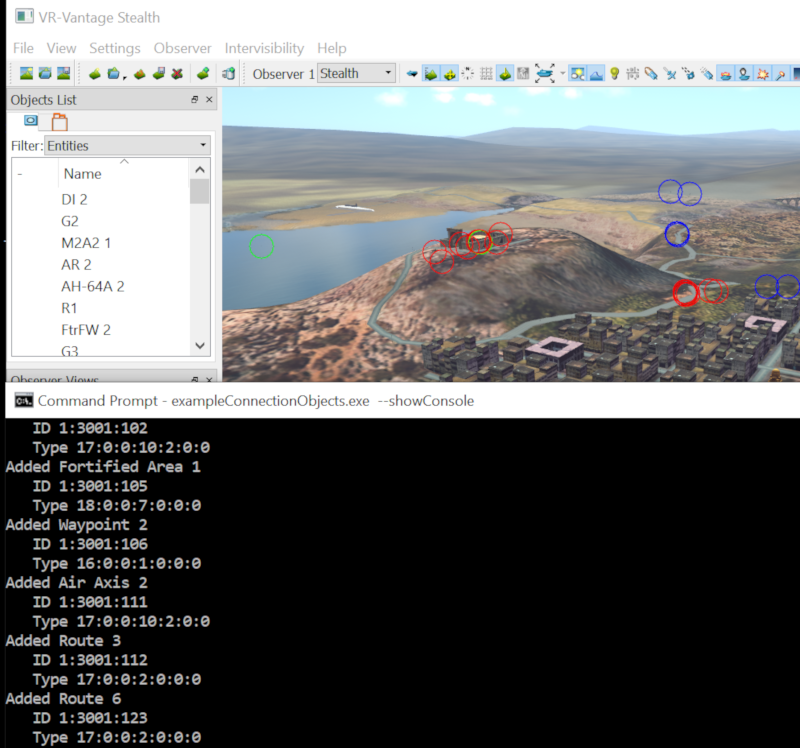
The exampleConnectionObjects example shows the signal that is raised with all the elements whose attribute data has been received that frame; elements can be added to indices or sets based on attribute data at that time. It builds an index of element IDs to Marking Text (Display Name) and vice versa. The example can easily be extended to build similar indices using connection ID attributes.
VR-Vantage includes pre-built versions of the example plug-in. To build it yourself, follow the instructions at Building VR-Vantage Examples, Applications, and Plug-ins.
This example is a plug-in. You can run it by running ./bin64/exampleConnectionObjects.exe –showConsole (on Windows from cmd.exe) or ./bin64/exampleConnectionObjects (on Linux). Load MakLand terrain, once Vantage is started, connect with DIS. Open MAK DIS Logger and load "makland2016-DIS.lgr". Hit Play and you will see the connection information printed in the console. For more information about running examples, please see Running Applications and Examples.
[<< Examples] [Home] [Top of Page]