 |
VR-Vantage 3.0.3 API Documentation
|


All Classes Namespaces Files Functions Variables Typedefs Enumerations Enumerator Properties Friends Macros Groups Pages
|
VR-Vantage 3.0.3 API Documentation
|
This example demonstrates how to manually create communication lines in a scene. During normal VR-Vantage execution, the communication and transmission element processors listen for interactions and messages on the network that indicate communications. Should communication lines need to be created to visualize communications that are either not published on the network or are different types of communications, communication lines can be manually created in the manner demonstrated in this example.

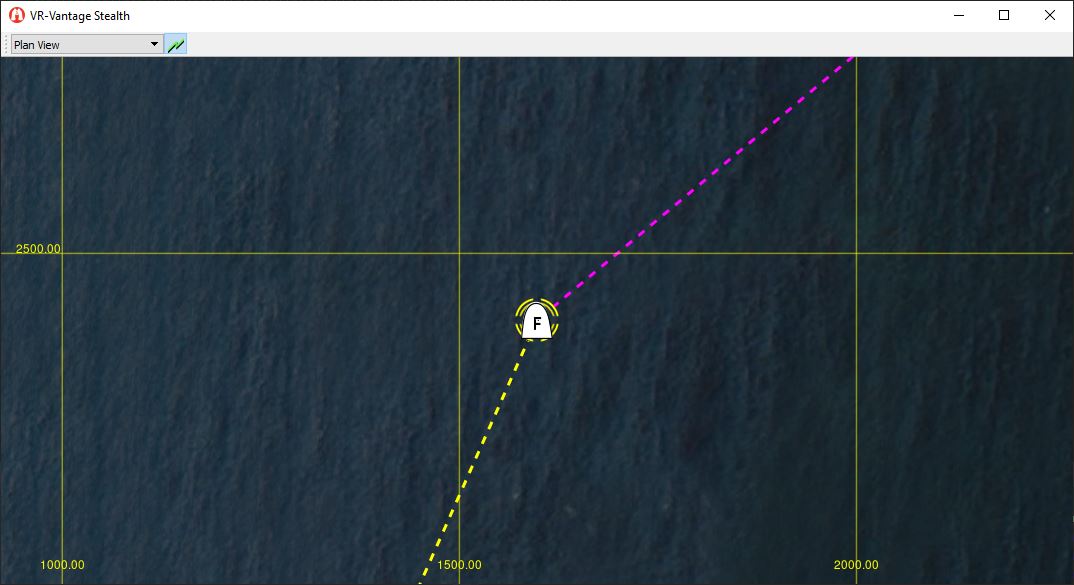
There are two different types of communication lines in VR-Vantage. The first is a line connecting the two communicating entities, and the second is a set of circular lines that radiate from the source of the communication.
The first type, dubbed 'Communication Lines' connect the sender and receiver of the communication. The end points of the line may be attached to either entities (either moving or stationary), or fixed points in space. The lines are also dashed, and scroll in the direction of the communication (from sender to receiver). The rate at which the lines scroll can be configured in the Interaction Definition Editor in the configured DtRadioCommunicationVisualizer's visual definition. Communication Lines can also be configured to be displayed as straight lines (Line-Of-Sight mode), or as curved lines that follow the surface of the earth (Curved-Earth mode) - the comm line display mode can be configured on the Radio Communications page in the Display Settings Dialog.
The second type of communication lines are called 'Squawk Lines,' and radiate outwards from the source of a radio communication so the source can be easily identified at a glance. As with Communication Lines, Squawk Lines can be attached to either an entity or a fixed point in space, and the animation rate can also be configured in the same manner as the Communication Lines' animation rate.
In addition to the above mentioned settings, there are also other settings that can be configured through the Display Settings dialog. These other settings include the duration for which the different types of communication lines remain visible after the initial communication (their 'lifetime'), and options for coloring communications based on their frequency.
All communication lines are created and managed through the DtCommunicationsLineManager. Having a single class manage and maintain all communication lines ensures that multiple DtCommunicationLine or DtSquawkLine objects aren't created between the same two entities or at the same point in space. It is also the DtCommunicationsLineManager that keeps track of the creation time of all the communication lines and handles their animation as well as their destruction when the end of their lifetimes are reached. The coloring of the communication lines based on frequency is also handled by the DtCommunicationLineManager.
The DtCommunicationsLineManager exists in VR-Vantage's main thread, and as such cannot be controlled directly from threads other than the main thread. The DtCommLineManagerCommunicatorAgent exists to allow communication with the DtCommunicationLineManager from other threads, and provides much the same interface as the DtCommunicationLineManager itself. In short, when creating or managing a communication or squawk line from the main thread - use the Manager, when creating or managing a communication or squawk line from any other thread - use the Communicator.
This example shows how to manually create communication lines in VR-Vantage. The example provides an environment for the communication lines (Ground_DB II), and an entity (F-18) for demonstrating attaching communication lines to a moving entity. For more information regarding the setup of the environment and entity, see the exampleDriver example.
The driver's onTick() method is where the communication line logic resides. Every time the driver ticks, it checks when the last time communication lines were created was, and waits until 15 seconds have passed to create new communication lines and squawk lines. Upon creating the communication lines, the driver sets the lifetime for the communication and squawk lines to 10 seconds, overriding the global lifetime setting and ensuring the lines will time out before new lines are created. If the driver didn't wait until the lines were timed out, the re-creation of the comm lines would only extend the lifetime of the existing lines another 10 seconds, and the lines would never time out.
The example provides code demonstrating both how to use the DtCommunicationLineManager directly, as well as how to use the DtCommLineManagerCommunicatorAgent. When using the DtCommunicationLineManager directly, a find call is necessary for each communication line and squawk line action, and the returned comm line ID must be used to modify it.
When using the DtCommLineManagerCommunicatorAgent, the communicator itself keeps track of the ID of the last communication line found and automatically uses that ID for further set calls.
VR-Vantage includes pre-built versions of the example plug-in. To build it yourself, follow the instructions at Building VR-Vantage Examples, Applications, and Plug-ins.
This example is a plug-in. You can run it by running vrvStealth.exe –plugin ../examples/plugins/release/exampleCommLines.dll (on Windows) or vrvStealth.exe –plugin ../examples/plugins/release/libexampleCommLines.so (on Linux) from the command prompt. Once Vantage is started, press the "s" multiple time to move away from the "F18" and see the comminication lines. From the toolbar menu toogle to "plan view" to see the communication line in 2D. For more information about running examples, please see Running Applications and Examples.
[<< Examples] [Home] [Top of Page]