 |
VR-Vantage 3.0.3 API Documentation
|


All Classes Namespaces Files Functions Variables Typedefs Enumerations Enumerator Properties Friends Macros Groups Pages
|
VR-Vantage 3.0.3 API Documentation
|
This example demonstrates how to use the vrvControlToolkit to send view control messages to an instance of VR-Vantage. It can send a Wireframe Control message and the LightCommand Control Message that the exampleViewControl plugin enables in VR-Vantage.
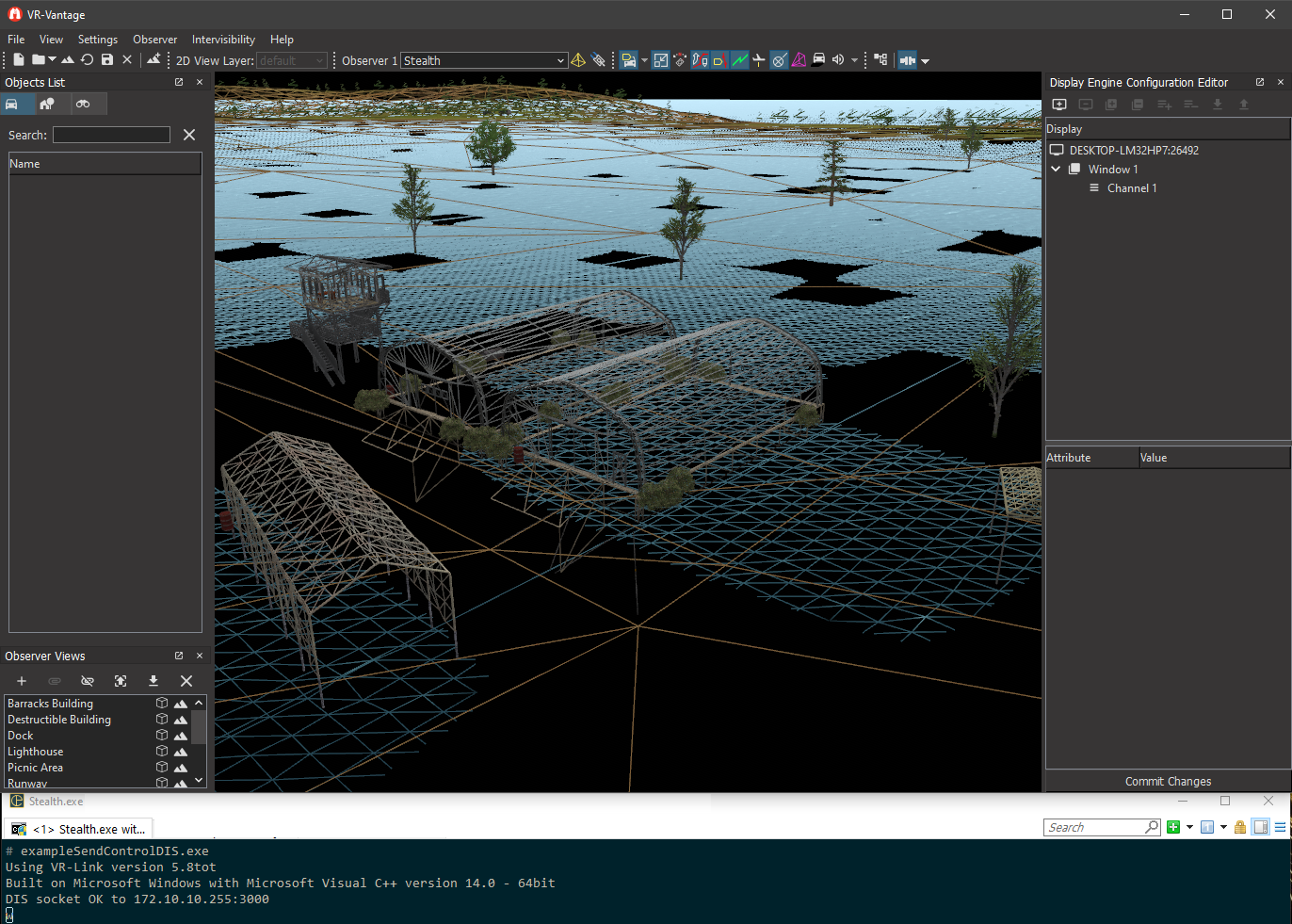
When running this example, type 'w' (and press Enter) into the example's console window and it will send a view control message to VR-Vantage telling it to toggle wireframe mode on or off (the first message enables wireframe, further messages toggle). In order for VR-Vantage to listen and respond to the view control messages, make sure "Listen for View Controls" is checked in the connection's configuration page. Typing 'q' will shut down the example.
To test the custom view control packet, type 'l' (and press Enter). If VR-Vantage is running the plug-in created in exampleViewControl, this will toggle the ambient and diffuse settings between different values.
VR-Vantage includes prebuilt versions of the example application. To build it yourself, follow the instructions in Building VR-Vantage Examples, Applications, and Plug-ins.
This example is a VR-Link application, and requires a VR-Link license to run. Start Vantage with the exampleViewControl plugin loaded first, then load a terrain and connect with the protocol you want to test. Then run ./bin64/exampleSendControl<protocol>.exe (on Windows) or ./bin64/exampleSendControl<protocol> (on Linux) and press 'w' to send a 'toggle to wireframe' message to VR-Vantage or 'l' to toggle between different values for ambient and diffuse lighting. For more information about running examples, please see Running Applications and Examples.
[<< Examples] [Home] [Top of Page]