 |
VR-Vantage 3.1.1 API Documentation
|


All Classes Namespaces Files Functions Variables Typedefs Enumerations Enumerator Properties Friends Macros Groups Pages
|
VR-Vantage 3.1.1 API Documentation
|
Shows how to access simulation data.
This example illustrates the use of simData collection and stateViews to access remote simulation data. In VR-Vantage, the network connection(s) (DIS, HLA13, etc.) runs in separate threads. As much of the data received by the connection as possible is processed in the connection itself; only the data needed for rendering or driving the VR-Vantage GUI is transmitted across the thread boundary(s). Given that an exercise may contain thousands of entities, and a fairly large amount of data may be transmitted about each entity, only moving the data that is necessary across the thread boundary can provide a substantial performance benefit. Each simulation object has an associated simEntry that manages this simulation data. The simData object is the collection of these simEntries (indexed by uniqueId).
VR-Vantage provides a mechanism for applications to request that this extra simulation data, or simData, be collected; and to request, at periodic intervals, snapshots or views of this data, called stateViews, on the simEntries associated with specific objects from the connection that it may need. For example, the DIS/RPR 7-digit entity type is not used outside the connections, but an application might need this for some reason (perhaps, to display in a GUI dialog). This example uses a standard pre-defined stateView that contains most of the information normally found in a DIS/RPR entity update; however, it is possible for users to create their own state view object types that contain only the simEntry data of interest to that subscriber.
In this example, a driver is created by a plugin which enables simData collection and then listens for signals that indicate that an observer has attached to or detached from an entity. On attachment, the driver requests a stateView on the simEntry for the attached-to entity at 1 second intervals and displays a few of the returned fields to the console; when the observer detaches, it cancels the stateView request.
The first step is to create the driver. Since this must be done AFTER the display engine has been initialized, the plugin registers for the display engine's postInitialize signal.
When the display engine has been initialized, the method registered with the signal is invoked. The method disconnects itself from any further signals.
It then creates the driver and adds it to the driver manager.
The example StateView Driver initializes itself in its onStart() method. First, it registers a callback, handleAttachToChanged(), on the attachedTo signal so it will know when attachment changes occur.
It also attaches to the simObjectEntryAboutToBeRemoved signal. This allows the driver to delete any cached stateView when the simEntry that stateView is associated with goes away.
Finally, it requests that simData collection be enabled. This is a global setting that only needs to be set once in the application. By default, simData collection is disabled.
When handleAttachToChanged() is called because the observer's attachment state has changed, it first checks to see if the observer's attachment list is empty. If it is, it deletes the current stateView (if any). Otherwise, it creates a stateView and requests updates for the attached-to entity. To do so, it must first find the DtSimEntry for the entity.
It can then use the simEntry to create a stateView on that entry. Here, it creates the pre-defined state view which contains data from a VR-Link entity update.
Finally, if the stateView is successfully created, it sets an update rate of 1Hz and connects to the signal that provides the update.
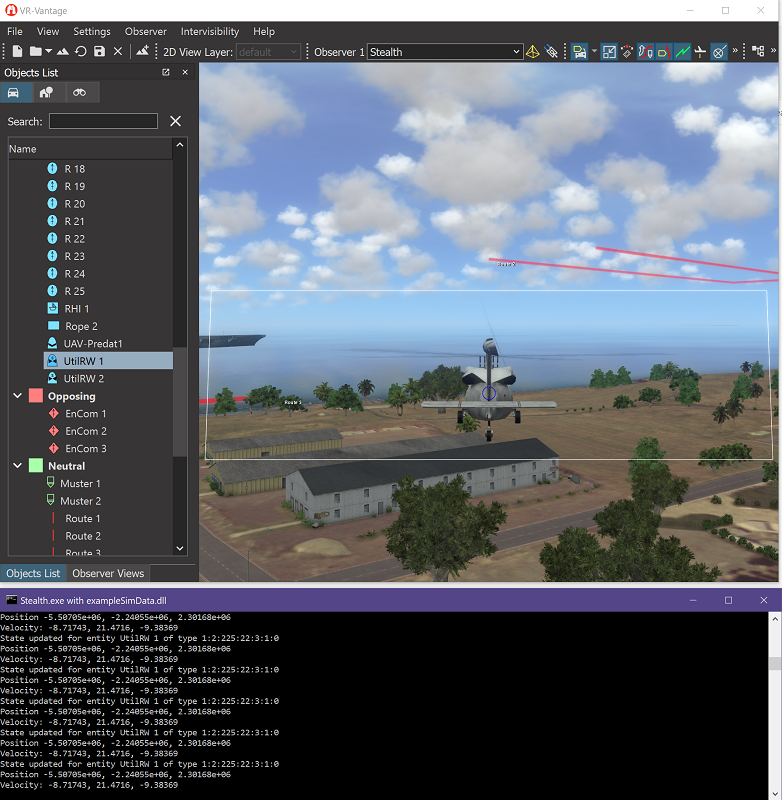
The method slot_StateViewUpdated() is connected to the stateView's update signal; the signal provides the actual state update as argument to this method. This is the same stateView object that was used to request the update - it's provided for convenience. slot_StateViewUpdated() just sends some of the data in the state vector to the console.
VR-Vantage includes pre-built versions of the example plug-in. To build it yourself, follow the instructions at Building VR-Vantage Examples, Applications, and Plug-ins.
This example is a plug-in. You can run it by running ./bin64/exampleSimData_stealth.bat (on Windows) or ./bin64/exampleSimData_stealth.sh (on Linux). Load the Ala Moana terrain from the Load Terrain Dialog ('Ala Moana.mtf'); from the menu "Settings->Connections...", connect to 'DIS (7) localhost'. Then start the MAK Logger for DIS (loggerDIS.exe) and load 'Raid2021-DIS.lgr' and hit play. In Vantage select a moving entity, from the Object List window select the entity and right click and select "Attach Follow". If you now look in the console you will see the print out of the sim data. For more information about running examples, please see Running Applications and Examples.
[<< Examples] [Home] [Top of Page]